How to Reinstall Windows on the Same PC
Need to wipe your PC and start fresh? Reinstalling Windows on the same device is easy
Need to wipe your PC and start fresh? Reinstalling Windows on the same device is easy — and as long as you’ve already activated your license on that machine, it will usually reactivate automatically after reinstall.
Here’s how to do it safely and correctly.
🔁 When to Reinstall Windows
Your PC is running slow or unstable
You want to remove viruses, bloatware, or unnecessary apps
You’ve upgraded your hardware (except motherboard)
You're fixing corrupted system files or registry issues
🧰 What You’ll Need:
A Clean USB flash drive (8GB+)
The official Media Creation Tool from Microsoft
Your Windows license key (optional if already linked)
✅ Step-by-Step Guide
🔽 Step 1: Download the Media Creation Tool
Visit Microsoft’s website:
Windows 10:
👉 https://www.microsoft.com/software-download/windows10
Windows 11:
👉 https://www.microsoft.com/software-download/windows11
Download and run the Media Creation Tool.
💾 Step 2: Create a Bootable USB
Select “Create installation media for another PC”
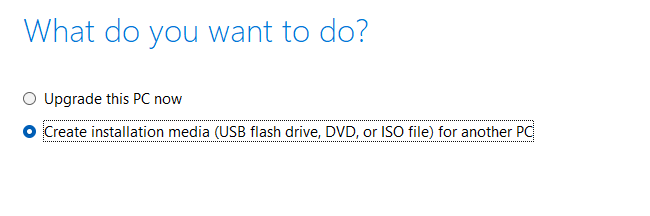
Choose your language, edition, and architecture (64-bit is most common)
Insert your USB drive and follow the on-screen instructions to create installation media.
🚀 Step 3: Boot From the USB Drive
Plug the USB into your computer
Restart and enter the boot menu (usually F12, ESC, or DEL during startup)
Select your USB drive to boot from
🧹 Step 4: Choose “Custom Install”
Select the main Windows partition
Click Format (⚠ this will erase your data — back up anything important)
Continue with the installation
🔐 Will I Need to Enter My Product Key Again?
If Windows was previously activated and linked to your device:
✅ It will automatically reactivate after the reinstall.If not linked, or using a retail key:
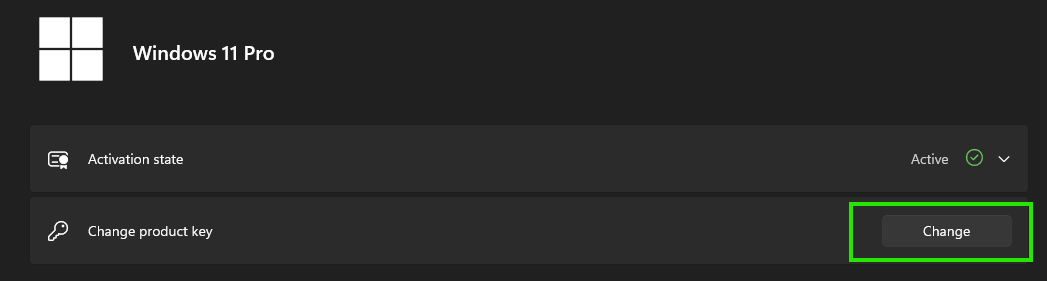
🔑 You may need to re-enter your product key:Settings > System > Activation > Change product key
🛠 After Reinstalling
Install Windows updates
Reinstall your programs
Restore your files from backup