QuickBooks Desktop Pro 2024 – Installation & Setup Guide (Windows – US Version)
Learn how to download, install, activate, and set up QuickBooks Desktop Pro 2024 (US Version) on your Windows PC, including instructions to enable payroll.
📥 Step 1: Download the Software
Visit the following link to start the download:
Download QuickBooks Desktop Pro 2024
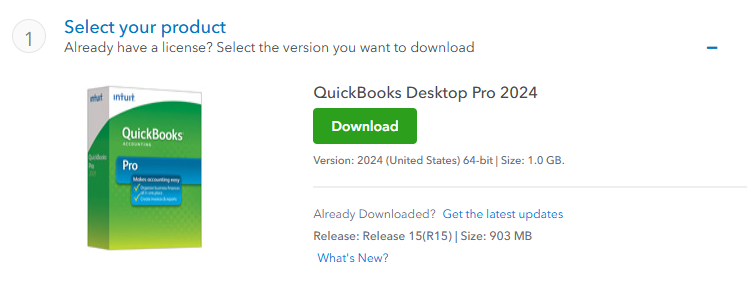
Ensure you are using a Windows computer for the download and installation process.
🔧 Step 2: Install QuickBooks
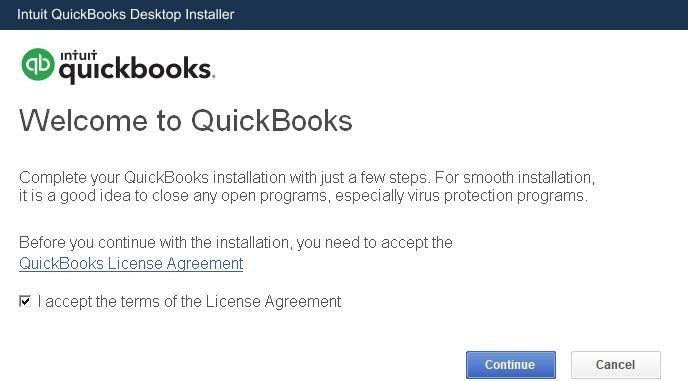
Locate the downloaded file (usually in your Downloads folder) and double-click it to start the installation.
Accept the License Agreement and click Continue.
🔑 Step 3: Enter Your License Details
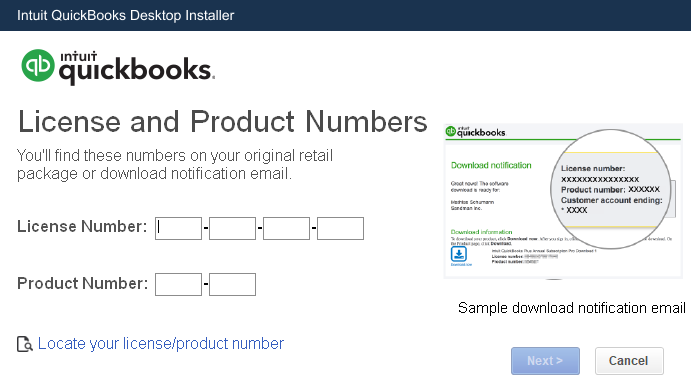
Enter the License Number and Product Number provided to you by Software Kings.
These are sent via email and included in your order confirmation.
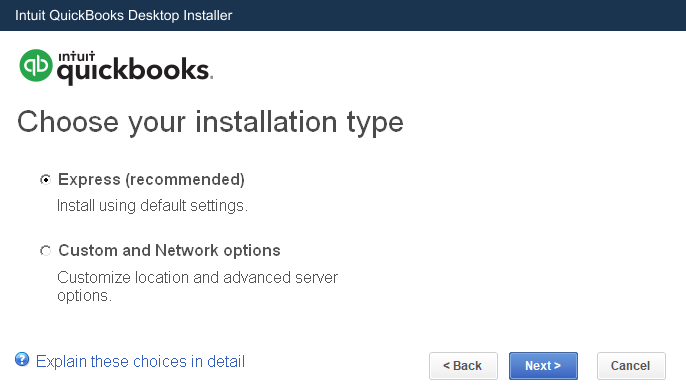
Click Next, select Express installation, and click Next again.
Wait for the software to install.
🚀 Step 4: Activate QuickBooks
Once installed, open QuickBooks by clicking Open QuickBooks.
You will be prompted to activate your software:
Select Activate QuickBooks Desktop Now.
If you encounter any issues, select Issues with Activation.
Important: Do not contact Intuit support — simply enter the validation code provided with your license information.
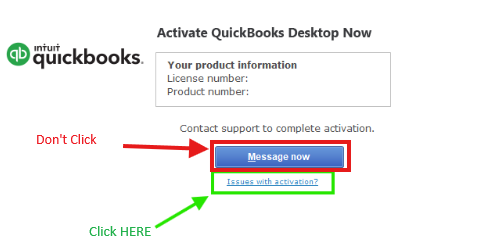
After entering your Validation Code, QuickBooks Desktop Pro 2024 will be ready to use.
💼 How to Enable Payroll
Open QuickBooks Desktop.
Go to the Edit menu and select Preferences.
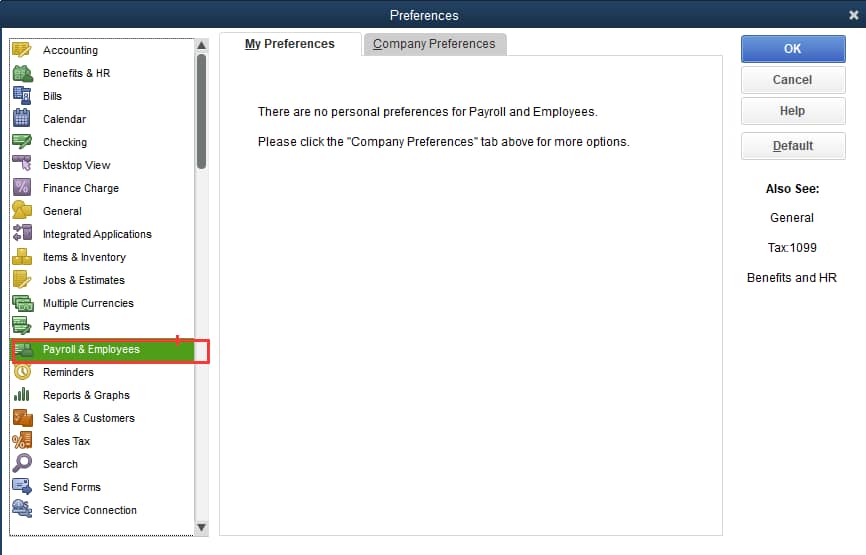
In the left panel, click Payroll & Employees, then open the Company Preferences tab.
Under QuickBooks Payroll Features, select Full Payroll or Manual Payroll, then click OK to save changes.
If using Manual Payroll, QuickBooks will calculate payroll without tax table updates. You must manually enter tax rates and amounts when creating paychecks.
🆘 Need Help?
We’re here to assist!
📧 Email: [email protected]
💬 WhatsApp: Message us through our website
Enjoy your QuickBooks Desktop Pro 2024 experience!
— The Software Kings Team 👑